Magiceraser

Android photo edits

free magic eraser for android photo edits without leaving your image workflow

Clean up a photo from your Android workflow without rebuilding the image from scratch. Mark the distracting detail, hand off the edit, and review a more focused result.

Review every result
Clean Android photo editing workspace

The audience's existing pipeline

Different Android photo tasks share the same short path: capture, inspect, remove the distraction, then export or share.

Travelers

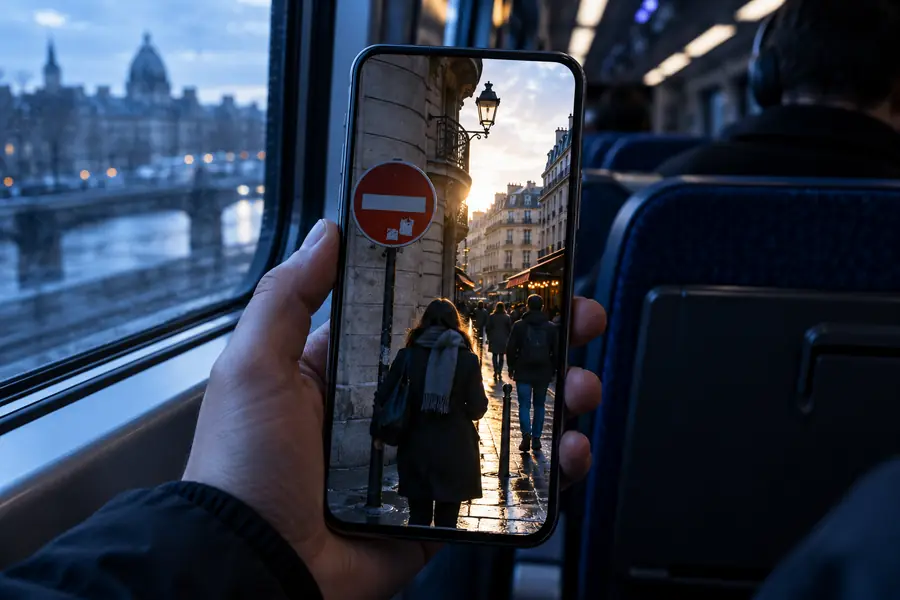
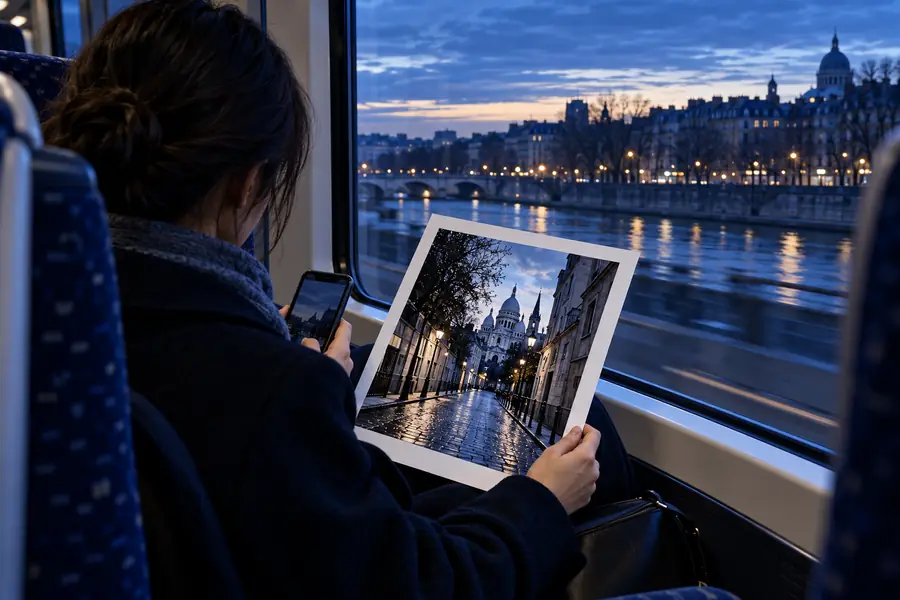
A landmark photo includes passersby, bins, signs, or other temporary clutter that was not visible when the picture was taken.

A cleaner travel image keeps attention on the place instead of the accidental background details.

remove people from photos

Online sellers

A product shot contains a stray cable, label, reflection, or object that makes the listing look less focused.

The main item becomes easier to inspect while the surrounding scene stays recognizable.

remove an object from a photo

Students and teams

A screenshot or photographed document contains an old note, accidental mark, or visible text that should not remain in the shared version.

The working image is easier to present, annotate, or circulate after a careful cleanup pass.

remove text from an image

Social creators

A portrait or street image is almost ready to publish, but one background detail competes with the subject.

The frame feels more deliberate without requiring a full desktop retouching session.

online photo cleanup

Three focused steps

Where we slot in

The route is designed for a small correction, not a complete image-production pipeline.

Choose the source image

Start with the Android photo that already contains the moment, subject, or information you want to preserve.

Describe the unwanted detail

Point the workflow toward the person, object, mark, or background element that should be removed.

Review before sharing

Check edges, repeated textures, and nearby faces or text before using the edited image elsewhere.

Workflow fit

Where we slot in

This comparison separates a targeted cleanup from the rest of the Android photo process.

Existing Android workflow Magiceraser cleanup step
1

Starting point

Existing Android workflow

A photo already captured and saved on the device

Magiceraser cleanup step

The same photo, selected for one focused correction

2

Main job

Existing Android workflow

Capture, crop, adjust, organize, and share

Magiceraser cleanup step

Remove a distracting visual detail

3

Best use

Existing Android workflow

Broad edits and everyday photo management

Magiceraser cleanup step

People, objects, marks, or clutter competing with the subject

4

User decision

Existing Android workflow

Which image and general edits belong in the final set

Magiceraser cleanup step

Which detail should disappear and what context must remain

5

Quality check

Existing Android workflow

Framing, brightness, sharpness, and overall appearance

Magiceraser cleanup step

Edges, repeated textures, faces, text, and natural-looking fill

6

Handoff

Existing Android workflow

Share or store the finished Android image

Magiceraser cleanup step

Review the cleaned result before returning it to the wider workflow

Focused correction

Before/after

A useful removal preserves the reason you took the photo while reducing the detail that pulls attention away from it.

Before

Android photo containing a distracting background detail
Cleaned photo with the distracting detail removed
After

The best result is judged at normal viewing size, then checked closely around the edited area.

The useful numbers

Before/after

These are the concrete quantities that define this page's workflow rather than invented performance promises.

Start with one Android photo that needs a focused cleanup
01 image
Choose, describe, and review the edit
03 steps
Inspect the edited area and the full composition before sharing
02 checks

Know the edges

Deliverable spec

A targeted editor is useful when expectations stay specific. These limits help you decide when another tool or a manual pass is appropriate.

Not a guarantee of perfect reconstruction

Busy textures, fences, repeating patterns, or overlapping subjects can leave visible artifacts after removal.

WorkaroundUse a smaller selection, compare several results, and retouch the area manually when the background is complex.

Not a full photo editor

This route is centered on removing unwanted details rather than replacing every color, exposure, crop, or composition control.

WorkaroundComplete broader adjustments in the Android editor before or after the cleanup step.

Not a substitute for privacy review

Removing a visible person, logo, or line of text does not automatically remove every identifying clue from an image.

WorkaroundInspect the full frame and avoid sharing sensitive images until the result has been checked.

Not a promise of native Android controls

The page describes a phone-friendly workflow, but it does not claim a particular Android version, gallery integration, or device feature.

WorkaroundTreat the edited result as a handoff into your normal Android save and share process.

Ready for the next edit

Deliverable spec

Turn a nearly finished Android photo into a share-ready image

Bring the image that is already on your phone, describe the distracting detail, and review the result before it moves back into your normal gallery or publishing workflow.

  • Focused cleanup for one image
  • Review before sharing
  • Works as a handoff from a phone-first workflow

Common Android questions

Scenario FAQ

Answers for people deciding whether this workflow fits the photo already on their phone.

It is a phone-oriented way to remove an unwanted person, object, mark, or other distraction from a photo. The important distinction is the workflow: choose an existing image, describe the cleanup, and review the result before sharing.

Magiceraser is presented here as a phone-friendly handoff for Android photo editing. Device behavior, browser support, and gallery integration can vary, so review the edited image before saving or publishing it.

Typical targeted edits include background people, small objects, visual clutter, stray marks, and some visible text. Results depend on the surrounding texture, overlap, lighting, and how much context must be reconstructed.

It can look natural when the selected detail is clear and the surrounding background is relatively simple. Always inspect the edges and nearby patterns at close range, especially before using the image for work, listings, or public posts.

Use extra care with private, confidential, or identifying photos. Removing one visible detail does not guarantee that every sensitive clue is gone, so check the full frame and follow the handling rules for your situation.

Edit a photo
Edit a photo